
Week 30: React 18 concurrent features — transitions, streaming
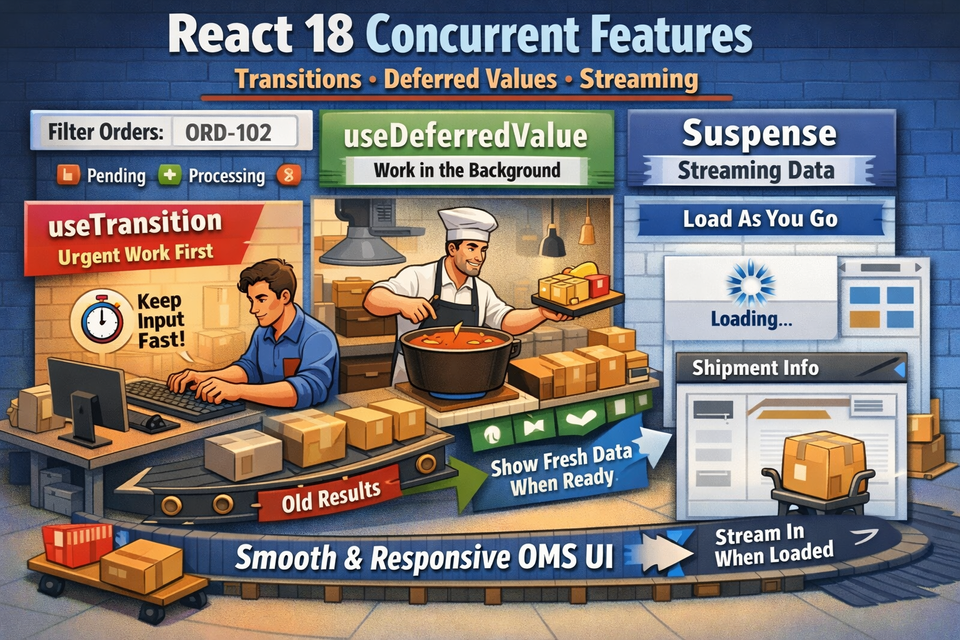
Imagine you're working on an OMS dashboard. A warehouse agent types an order ID in a search box. The UI freezes for half a second, the input lags, and the agent gets frustrated.
This isn't a database problem. It's a rendering problem — and React 18 was built precisely to solve it.
React 18 introduced Concurrent Features, a fundamental shift in how React schedules and renders work. Instead of treating every state update as equally urgent, React 18 lets you tell it: "This update is urgent. That one can wait."
In this article, we'll cover:
- What "concurrent" actually means in React
useTransition— keeping your UI responsive during heavy updatesuseDeferredValue— deferring expensive derived computations- Streaming with
Suspense— progressively loading parts of your UI
All examples are grounded in an Order Management System context. By the end, you'll have a working OMS search dashboard that uses all three features together.
📌 Before diving in, make sure you're comfortable with React's rendering model. If not, revisit useEffect with Dependencies and Cleanup and React useMemo in Complex UI Scenarios — they lay excellent groundwork.
What Does "Concurrent" Even Mean?
In older React (pre-18), rendering was synchronous and blocking. Once React started rendering a component tree, it couldn't stop — it had to finish before the browser could paint anything or respond to user input.
React 18's concurrent renderer is interruptible. It can:
- Start rendering a component tree
- Pause it mid-way if something more urgent comes in (like a user keystroke)
- Discard or resume the paused work later
Think of it like a kitchen in an OMS warehouse. The old React was a cook who, once started on a complex order, couldn't take a new urgent takeaway order until the big one was done. Concurrent React is a cook who can pause the complex order, handle the quick one, and come back.
You don't need to rewrite your app to get concurrent features. React 18's new root API (createRoot) opts you into the concurrent renderer automatically.
Project Setup
Let's build an OMS Order Search Dashboard step by step.
Project structure:
src/
├── App.jsx
├── main.jsx
├── data/
│   └── orders.js
├── components/
│   ├── SearchBar.jsx
│   ├── OrderList.jsx
│   ├── OrderCard.jsx
│   ├── ShipmentDetails.jsx
│   └── LoadingSpinner.jsx
└── index.css
File: src/main.js
import React from 'react';
import { createRoot } from 'react-dom/client';
import App from './App';
import './index.css';

// createRoot opts into React 18's concurrent renderer
const root = createRoot(document.getElementById('root'));
root.render(
  <React.StrictMode>
    <App />
  </React.StrictMode>
);
⚠️ NoticecreateRootinstead ofReactDOM.render. This single change enables concurrent features. Without it,useTransitionand concurrent Suspense won't behave as expected.
File: src/data/orders.js
This simulates a large dataset of OMS orders. We'll use this to mimic expensive filtering.
// Simulate 500 orders in an OMS
export function generateOrders(count = 500) {
  const statuses = ['Created', 'Released', 'Shipped', 'Delivered', 'Cancelled', 'On Hold'];
  const carriers = ['FedEx', 'UPS', 'USPS', 'DHL'];
  const customers = ['Acme Corp', 'GlobalMart', 'TechHub', 'RetailPlus', 'FastShip Co'];

  return Array.from({ length: count }, (_, i) => ({
    id: `ORD-${String(i + 1000).padStart(5, '0')}`,
    customer: customers[i % customers.length],
    status: statuses[i % statuses.length],
    carrier: carriers[i % carriers.length],
    items: Math.floor(Math.random() * 10) + 1,
    total: (Math.random() * 500 + 20).toFixed(2),
    date: new Date(Date.now() - Math.random() * 30 * 24 * 60 * 60 * 1000)
      .toLocaleDateString('en-US'),
  }));
}

export const ALL_ORDERS = generateOrders(500);
Part 1: useTransition — Keeping Search Input Snappy
The Problem
Without concurrent features, filtering 500 orders on every keystroke means React re-renders the entire list synchronously on each character typed. The input feels laggy because React is busy.
The Solution: useTransition
useTransition lets you mark a state update as non-urgent. React will prioritize keeping the UI responsive (like updating the input field) and do the heavy lifting (filtering 500 orders) when it has breathing room.
File: src/components/SearchBar.js
import React from 'react';

function SearchBar({ value, onChange, isPending }) {
  return (
    <div className="search-bar">
      <input
        type="text"
        placeholder="Search by Order ID, Customer, or Status..."
        value={value}
        onChange={(e) => onChange(e.target.value)}
        className="search-input"
      />
      {isPending && (
        <span className="pending-indicator">Searching...</span>
      )}
    </div>
  );
}

export default SearchBar;
File: src/components/OrderCard.js
import React from 'react';

const STATUS_COLORS = {
  Created: '#3b82f6',
  Released: '#8b5cf6',
  Shipped: '#f59e0b',
  Delivered: '#10b981',
  Cancelled: '#ef4444',
  'On Hold': '#6b7280',
};

function OrderCard({ order }) {
  return (
    <div className="order-card">
      <div className="order-header">
        <span className="order-id">{order.id}</span>
        <span
          className="order-status"
          style={{ backgroundColor: STATUS_COLORS[order.status] || '#999' }}
        >
          {order.status}
        </span>
      </div>
      <div className="order-body">
        <p><strong>Customer:</strong> {order.customer}</p>
        <p><strong>Carrier:</strong> {order.carrier}</p>
        <p><strong>Items:</strong> {order.items}</p>
        <p><strong>Total:</strong> ${order.total}</p>
        <p><strong>Date:</strong> {order.date}</p>
      </div>
    </div>
  );
}

export default OrderCard;
File: src/components/OrderList.js
import React from 'react';
import OrderCard from './OrderCard';

function OrderList({ orders }) {
  if (orders.length === 0) {
    return <p className="no-results">No orders found matching your search.</p>;
  }

  return (
    <div className="order-list">
      <p className="result-count">{orders.length} order(s) found</p>
      <div className="order-grid">
        {orders.map((order) => (
          <OrderCard key={order.id} order={order} />
        ))}
      </div>
    </div>
  );
}

export default OrderList;
Now, let's wire it all up in App.js using useTransition:
File: src/App.js (Part 1 — Transitions)
import React, { useState, useTransition } from 'react';
import SearchBar from './components/SearchBar';
import OrderList from './components/OrderList';
import { ALL_ORDERS } from './data/orders';
import './index.css';

// Simulate a slightly expensive filter operation
function filterOrders(orders, query) {
  if (!query.trim()) return orders;
  const q = query.toLowerCase();
  return orders.filter(
    (o) =>
      o.id.toLowerCase().includes(q) ||
      o.customer.toLowerCase().includes(q) ||
      o.status.toLowerCase().includes(q) ||
      o.carrier.toLowerCase().includes(q)
  );
}

function App() {
  const [inputValue, setInputValue] = useState('');
  const [searchQuery, setSearchQuery] = useState('');
  const [isPending, startTransition] = useTransition();

  const filteredOrders = filterOrders(ALL_ORDERS, searchQuery);

  function handleSearch(value) {
    // This update is URGENT — update the input immediately
    setInputValue(value);

    // This update is NON-URGENT — let React defer it
    startTransition(() => {
      setSearchQuery(value);
    });
  }

  return (
    <div className="app">
      <header className="app-header">
        <h1>📦 OMS Order Dashboard</h1>
        <p>React 18 Concurrent Features Demo</p>
      </header>

      <main className="app-main">
        <SearchBar
          value={inputValue}
          onChange={handleSearch}
          isPending={isPending}
        />

        {/* Dim the list while a transition is pending */}
        <div style={{ opacity: isPending ? 0.5 : 1, transition: 'opacity 0.2s' }}>
          <OrderList orders={filteredOrders} />
        </div>
      </main>
    </div>
  );
}

export default App;
What's happening here?
setInputValue(value)— urgent. React updates the input character immediately.startTransition(() => setSearchQuery(value))— non-urgent. React will update this when it's free.isPending—truewhile the transition is in progress. We use it to show "Searching..." and dim the list.
The result: the input stays perfectly snappy even while React is filtering 500 orders in the background.
📌 This builds on concepts from React useState: Practical Pitfalls and Fixes — specifically how multiple state updates interact in a single render cycle.
Part 2: useDeferredValue — Deferring Expensive Derived State
useDeferredValue is the sibling of useTransition. The difference:
useTransition | useDeferredValue | |
|---|---|---|
| You control | The state setter call | The value itself |
| Use when | You own the state update | You receive a prop or can't wrap the setter |
| Returns | [isPending, startTransition] | A deferred copy of the value |
In OMS terms: imagine you receive a statusFilter prop from a parent dashboard. You can't wrap that setter in startTransition because it's not yours. useDeferredValue is your answer.
Let's add a status filter to our dashboard.
File: src/App.js (Updated — with useDeferredValue)
import React, { useState, useTransition, useDeferredValue } from 'react';
import SearchBar from './components/SearchBar';
import OrderList from './components/OrderList';
import { ALL_ORDERS } from './data/orders';
import './index.css';

const STATUSES = ['All', 'Created', 'Released', 'Shipped', 'Delivered', 'Cancelled', 'On Hold'];

function filterOrders(orders, query, status) {
  return orders.filter((o) => {
    const q = query.toLowerCase();
    const matchesQuery =
      !q ||
      o.id.toLowerCase().includes(q) ||
      o.customer.toLowerCase().includes(q) ||
      o.status.toLowerCase().includes(q) ||
      o.carrier.toLowerCase().includes(q);

    const matchesStatus = status === 'All' || o.status === status;
    return matchesQuery && matchesStatus;
  });
}

function App() {
  const [inputValue, setInputValue] = useState('');
  const [searchQuery, setSearchQuery] = useState('');
  const [selectedStatus, setSelectedStatus] = useState('All');
  const [isPending, startTransition] = useTransition();

  // Defer the status value — even though we own it here, this shows
  // how useDeferredValue works when the value comes from outside
  const deferredStatus = useDeferredValue(selectedStatus);
  const deferredQuery = useDeferredValue(searchQuery);

  const filteredOrders = filterOrders(ALL_ORDERS, deferredQuery, deferredStatus);
  const isStale = deferredQuery !== searchQuery || deferredStatus !== selectedStatus;

  function handleSearch(value) {
    setInputValue(value);
    startTransition(() => {
      setSearchQuery(value);
    });
  }

  return (
    <div className="app">
      <header className="app-header">
        <h1>📦 OMS Order Dashboard</h1>
        <p>React 18 Concurrent Features Demo</p>
      </header>

      <main className="app-main">
        <SearchBar
          value={inputValue}
          onChange={handleSearch}
          isPending={isPending}
        />

        <div className="status-filters">
          {STATUSES.map((status) => (
            <button
              key={status}
              className={`filter-btn ${selectedStatus === status ? 'active' : ''}`}
              onClick={() => setSelectedStatus(status)}
            >
              {status}
            </button>
          ))}
        </div>

        <div style={{ opacity: isStale || isPending ? 0.5 : 1, transition: 'opacity 0.2s' }}>
          <OrderList orders={filteredOrders} />
        </div>
      </main>
    </div>
  );
}

export default App;
Notice the isStale check:
const isStale = deferredQuery !== searchQuery || deferredStatus !== selectedStatus;When deferredQuery hasn't caught up to searchQuery yet, the old results are "stale". We dim them to signal to the user that fresh results are on the way. This is a React 18 pattern you'll see everywhere.
Part 3: Streaming with Suspense — Progressive Loading
This is where React 18 gets really exciting.
Before React 18, Suspense only worked for lazy-loaded components (React.lazy). In React 18, Suspense works with data fetching — meaning you can progressively stream parts of your UI as data arrives, just like a web page streaming HTML from the server.
In an OMS context: your order list loads instantly, but the shipment details panel (which hits a slower shipping carrier API) streams in after.
File: src/components/LoadingSpinner.js
import React from 'react';

function LoadingSpinner({ message = 'Loading...' }) {
  return (
    <div className="loading-spinner">
      <div className="spinner"></div>
      <p>{message}</p>
    </div>
  );
}

export default LoadingSpinner;
File: src/components/ShipmentDetails.js
This component simulates fetching shipment tracking from a carrier API (FedEx/UPS). We use a "suspense-compatible" data fetching pattern with a use-style resource.
import React, { use } from 'react';

// A suspense-compatible resource creator
// In production, use React Query or SWR (see article #26) which handle this for you
function createShipmentResource(orderId) {
  let status = 'pending';
  let result;

  const promise = new Promise((resolve) => {
    // Simulate a slow carrier API call (1.5 seconds)
    setTimeout(() => {
      resolve({
        orderId,
        trackingNumber: `TRK-${Math.random().toString(36).substring(2, 10).toUpperCase()}`,
        carrier: 'FedEx',
        estimatedDelivery: new Date(Date.now() + 3 * 24 * 60 * 60 * 1000).toLocaleDateString(),
        currentLocation: 'Memphis, TN Distribution Center',
        events: [
          { time: '09:15 AM', event: 'Package scanned at Memphis hub' },
          { time: '06:30 AM', event: 'Departed origin facility' },
          { time: 'Yesterday', event: 'Picked up from merchant' },
        ],
      });
    }, 1500);
  });

  promise.then(
    (value) => { status = 'success'; result = value; },
    (error) => { status = 'error'; result = error; }
  );

  return {
    read() {
      if (status === 'pending') throw promise; // Suspense catches this!
      if (status === 'error') throw result;
      return result;
    },
  };
}

// Cache resources so we don't refetch on every render
const resourceCache = {};

function getShipmentResource(orderId) {
  if (!resourceCache[orderId]) {
    resourceCache[orderId] = createShipmentResource(orderId);
  }
  return resourceCache[orderId];
}

function ShipmentDetails({ orderId }) {
  const shipment = getShipmentResource(orderId).read();

  return (
    <div className="shipment-details">
      <h3>🚚 Shipment Tracking</h3>
      <div className="shipment-info">
        <p><strong>Tracking #:</strong> {shipment.trackingNumber}</p>
        <p><strong>Carrier:</strong> {shipment.carrier}</p>
        <p><strong>Est. Delivery:</strong> {shipment.estimatedDelivery}</p>
        <p><strong>Current Location:</strong> {shipment.currentLocation}</p>
      </div>
      <div className="tracking-events">
        <h4>Tracking Events</h4>
        {shipment.events.map((event, i) => (
          <div key={i} className="tracking-event">
            <span className="event-time">{event.time}</span>
            <span className="event-desc">{event.event}</span>
          </div>
        ))}
      </div>
    </div>
  );
}

export default ShipmentDetails;
export { getShipmentResource };
Now let's update App.jsx to use Suspense for streaming in the shipment panel:
File: src/App.js (Final — with Suspense Streaming)
import React, { useState, useTransition, useDeferredValue, Suspense } from 'react';
import SearchBar from './components/SearchBar';
import OrderList from './components/OrderList';
import ShipmentDetails from './components/ShipmentDetails';
import LoadingSpinner from './components/LoadingSpinner';
import { ALL_ORDERS } from './data/orders';
import './index.css';

const STATUSES = ['All', 'Created', 'Released', 'Shipped', 'Delivered', 'Cancelled', 'On Hold'];

function filterOrders(orders, query, status) {
  return orders.filter((o) => {
    const q = query.toLowerCase();
    const matchesQuery =
      !q ||
      o.id.toLowerCase().includes(q) ||
      o.customer.toLowerCase().includes(q) ||
      o.status.toLowerCase().includes(q) ||
      o.carrier.toLowerCase().includes(q);
    const matchesStatus = status === 'All' || o.status === status;
    return matchesQuery && matchesStatus;
  });
}

function App() {
  const [inputValue, setInputValue] = useState('');
  const [searchQuery, setSearchQuery] = useState('');
  const [selectedStatus, setSelectedStatus] = useState('All');
  const [selectedOrder, setSelectedOrder] = useState(null);
  const [isPending, startTransition] = useTransition();

  const deferredQuery = useDeferredValue(searchQuery);
  const deferredStatus = useDeferredValue(selectedStatus);

  const filteredOrders = filterOrders(ALL_ORDERS, deferredQuery, deferredStatus);
  const isStale = deferredQuery !== searchQuery || deferredStatus !== selectedStatus;

  function handleSearch(value) {
    setInputValue(value);
    startTransition(() => setSearchQuery(value));
  }

  function handleSelectOrder(order) {
    startTransition(() => setSelectedOrder(order));
  }

  return (
    <div className="app">
      <header className="app-header">
        <h1>📦 OMS Order Dashboard</h1>
        <p>React 18 Concurrent Features — Transitions, Deferred Values & Streaming</p>
      </header>

      <main className="app-main">
        <div className="left-panel">
          <SearchBar value={inputValue} onChange={handleSearch} isPending={isPending} />

          <div className="status-filters">
            {STATUSES.map((status) => (
              <button
                key={status}
                className={`filter-btn ${selectedStatus === status ? 'active' : ''}`}
                onClick={() => setSelectedStatus(status)}
              >
                {status}
              </button>
            ))}
          </div>

          <div style={{ opacity: isStale || isPending ? 0.5 : 1, transition: 'opacity 0.2s' }}>
            <OrderList
              orders={filteredOrders}
              onSelectOrder={handleSelectOrder}
              selectedOrderId={selectedOrder?.id}
            />
          </div>
        </div>

        <div className="right-panel">
          {selectedOrder ? (
            <div className="order-detail">
              <h2>Order: {selectedOrder.id}</h2>
              <p><strong>Customer:</strong> {selectedOrder.customer}</p>
              <p><strong>Status:</strong> {selectedOrder.status}</p>
              <p><strong>Total:</strong> ${selectedOrder.total}</p>

              {/*
                Suspense boundary for streaming!
                The order details above render immediately.
                ShipmentDetails "streams in" after the slow API resolves.
                The spinner is shown in the meantime — the rest of the page is NOT blocked.
              */}
              <Suspense fallback={<LoadingSpinner message="Loading shipment tracking from carrier..." />}>
                <ShipmentDetails orderId={selectedOrder.id} />
              </Suspense>
            </div>
          ) : (
            <div className="empty-detail">
              <p>👈 Select an order to view shipment details</p>
            </div>
          )}
        </div>
      </main>
    </div>
  );
}

export default App;
Update OrderList.js to support selection:
File: src/components/OrderList.js (Updated)
import React from 'react';
import OrderCard from './OrderCard';

function OrderList({ orders, onSelectOrder, selectedOrderId }) {
  if (orders.length === 0) {
    return <p className="no-results">No orders found matching your search.</p>;
  }

  return (
    <div className="order-list">
      <p className="result-count">{orders.length} order(s) found</p>
      <div className="order-grid">
        {orders.slice(0, 50).map((order) => (
          <div
            key={order.id}
            onClick={() => onSelectOrder(order)}
            className={`order-card-wrapper ${selectedOrderId === order.id ? 'selected' : ''}`}
          >
            <OrderCard order={order} />
          </div>
        ))}
      </div>
    </div>
  );
}

export default OrderList;
ℹ️ We slice to 50 for performance in this demo. In production, you'd paginate — see Dynamic Routing and Code Splitting for patterns around chunking large views.
File: src/index.css
* { box-sizing: border-box; margin: 0; padding: 0; }

body {
  font-family: 'Segoe UI', sans-serif;
  background: #0f172a;
  color: #e2e8f0;
  min-height: 100vh;
}

.app { display: flex; flex-direction: column; min-height: 100vh; }

.app-header {
  background: #1e293b;
  padding: 1.5rem 2rem;
  border-bottom: 1px solid #334155;
}

.app-header h1 { font-size: 1.6rem; color: #f8fafc; }
.app-header p { color: #94a3b8; font-size: 0.85rem; margin-top: 0.25rem; }

.app-main {
  display: grid;
  grid-template-columns: 1fr 380px;
  gap: 1.5rem;
  padding: 1.5rem 2rem;
  flex: 1;
}

.search-bar { position: relative; margin-bottom: 1rem; }

.search-input {
  width: 100%;
  padding: 0.75rem 1rem;
  background: #1e293b;
  border: 1px solid #334155;
  border-radius: 8px;
  color: #f1f5f9;
  font-size: 0.95rem;
  outline: none;
}

.search-input:focus { border-color: #3b82f6; }

.pending-indicator {
  position: absolute;
  right: 1rem;
  top: 50%;
  transform: translateY(-50%);
  font-size: 0.75rem;
  color: #60a5fa;
}

.status-filters {
  display: flex;
  flex-wrap: wrap;
  gap: 0.5rem;
  margin-bottom: 1rem;
}

.filter-btn {
  padding: 0.35rem 0.85rem;
  border: 1px solid #334155;
  border-radius: 20px;
  background: transparent;
  color: #94a3b8;
  font-size: 0.8rem;
  cursor: pointer;
  transition: all 0.15s;
}

.filter-btn:hover { border-color: #3b82f6; color: #60a5fa; }
.filter-btn.active { background: #3b82f6; border-color: #3b82f6; color: white; }

.result-count { font-size: 0.8rem; color: #64748b; margin-bottom: 0.75rem; }

.order-grid {
  display: grid;
  grid-template-columns: repeat(auto-fill, minmax(260px, 1fr));
  gap: 0.75rem;
  max-height: calc(100vh - 280px);
  overflow-y: auto;
  padding-right: 0.25rem;
}

.order-card-wrapper { cursor: pointer; border-radius: 10px; }
.order-card-wrapper.selected .order-card { border-color: #3b82f6; }

.order-card {
  background: #1e293b;
  border: 1px solid #334155;
  border-radius: 10px;
  padding: 1rem;
  transition: border-color 0.15s;
}

.order-card:hover { border-color: #475569; }

.order-header {
  display: flex;
  justify-content: space-between;
  align-items: center;
  margin-bottom: 0.75rem;
}

.order-id { font-weight: 600; font-size: 0.9rem; color: #f1f5f9; }

.order-status {
  font-size: 0.7rem;
  padding: 0.2rem 0.6rem;
  border-radius: 12px;
  color: white;
  font-weight: 500;
}

.order-body p {
  font-size: 0.8rem;
  color: #94a3b8;
  margin-bottom: 0.25rem;
}

.order-body strong { color: #cbd5e1; }

.right-panel {
  background: #1e293b;
  border: 1px solid #334155;
  border-radius: 12px;
  padding: 1.5rem;
  position: sticky;
  top: 1.5rem;
  height: fit-content;
}

.empty-detail {
  display: flex;
  align-items: center;
  justify-content: center;
  height: 200px;
  color: #475569;
  font-size: 0.9rem;
}

.order-detail h2 { font-size: 1.1rem; color: #f1f5f9; margin-bottom: 1rem; }
.order-detail p { font-size: 0.85rem; color: #94a3b8; margin-bottom: 0.4rem; }
.order-detail strong { color: #cbd5e1; }

.shipment-details {
  margin-top: 1.5rem;
  padding-top: 1.5rem;
  border-top: 1px solid #334155;
}

.shipment-details h3 { color: #f1f5f9; margin-bottom: 0.75rem; font-size: 1rem; }

.shipment-info p {
  font-size: 0.82rem;
  color: #94a3b8;
  margin-bottom: 0.35rem;
}

.tracking-events { margin-top: 1rem; }
.tracking-events h4 { font-size: 0.85rem; color: #cbd5e1; margin-bottom: 0.5rem; }

.tracking-event {
  display: flex;
  gap: 0.75rem;
  font-size: 0.78rem;
  color: #64748b;
  margin-bottom: 0.35rem;
}

.event-time { color: #3b82f6; min-width: 80px; }
.event-desc { color: #94a3b8; }

.loading-spinner {
  display: flex;
  align-items: center;
  gap: 0.75rem;
  padding: 1.5rem 0;
  color: #64748b;
  font-size: 0.85rem;
}

.spinner {
  width: 20px;
  height: 20px;
  border: 2px solid #334155;
  border-top-color: #3b82f6;
  border-radius: 50%;
  animation: spin 0.7s linear infinite;
}

@keyframes spin { to { transform: rotate(360deg); } }

.no-results { color: #475569; font-size: 0.9rem; padding: 2rem 0; }
How It All Comes Together
Here's the full flow when a warehouse agent uses this dashboard:
- Agent types "ORD-102" →
inputValueupdates instantly (urgent).searchQueryupdate is wrapped instartTransition— the list filters when React is free. The input never lags. - Agent clicks "Shipped" filter →
selectedStatusupdates.deferredStatustrails behind, so the old (stale) results dim slightly while fresh ones render in. - Agent clicks an order card → The right panel shows order details immediately. The
<Suspense>boundary shows a spinner for the shipment tracking section, while React "streams" in theShipmentDetailscomponent once the (simulated) carrier API responds. The rest of the UI is completely unblocked the whole time.
This is what React 18 means when it says "concurrent UI." Three different concerns — input responsiveness, filter rendering, and data streaming — each handled at the right priority level.
📌 This streaming pattern pairs beautifully with the data fetching strategies covered in SWR & React Query for Fast Cached Data Fetching. Libraries like React Query are already Suspense-compatible and handle the resource pattern we built manually above.
Quick Cheat Sheet
useTransition
  → You control the setter
  → Returns [isPending, startTransition]
  → Wrap the non-urgent setState inside startTransition()

useDeferredValue
  → You receive a value (prop or derived)
  → Returns a "lagging copy" of that value
  → Compare deferred vs current to detect staleness

Suspense (React 18 data streaming)
  → Wrap slow-loading components in <Suspense fallback={...}>
  → The fallback shows while data loads
  → The rest of the page renders and stays interactive
Common Mistakes to Avoid
1. Wrapping everything in transitions Not every update needs startTransition. Transitions are for non-urgent, expensive UI updates. Form validation, button feedback, and modal toggles should remain synchronous.
2. Forgetting createRoot If you're using the old ReactDOM.render, none of these features work correctly. Always migrate to createRoot in React 18.
3. Mutating state inside startTransition startTransition takes a function — but that function must be synchronous. You can't await inside it directly.
// ❌ Wrong
startTransition(async () => {
  const data = await fetchOrders();
  setOrders(data);
});

// ✅ Correct — start the async outside, update state inside transition
const data = await fetchOrders();
startTransition(() => setOrders(data));
📌 For more on async state patterns and timing issues in effects, see Debugging Async Behavior in Effects.
What's Next?
We've now seen how React 18 makes the client smarter about rendering priorities and progressive loading. But what if we could move part of the rendering to the server entirely?
Next week, we'll explore React Server Components and Hydration — where React renders components on the server, streams them to the client as HTML, and then "hydrates" them into interactive React components. In OMS terms: imagine your order list rendering on the server and appearing instantly before a single byte of JavaScript is parsed by the browser.
Stay tuned — it's one of the most architectural shifts React has made in years.
Member discussion